

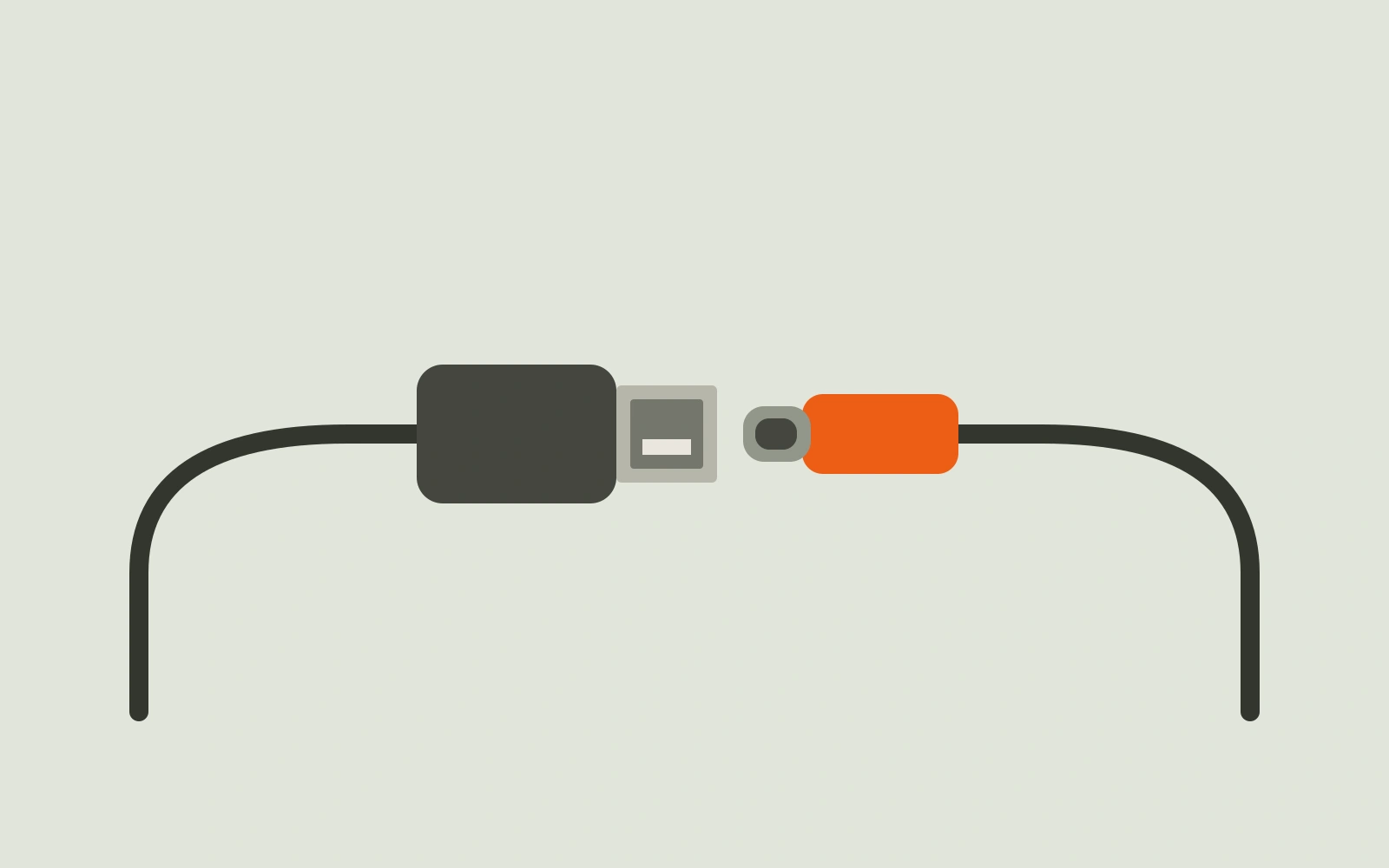
USB-C to USB-C is usually the right choice when both the device and charger have USB-C ports. USB-A to USB-C is needed when the device has USB-C but the charger, computer, car or power bank has the older rectangular USB-A port.
That physical match is only the first check. Connector shape does not by itself tell you how much power a cable can carry, whether it supports fast charging, how quickly it transfers files or whether it can connect a monitor.
Check the port at both ends
A charging cable connects a device to a power source, so inspect both before choosing a cable:
Device port: the socket on the phone, tablet, headphones, laptop or accessory.
Source port: the socket on the wall charger, power bank, computer, car or hub.
USB-A is the larger, flat rectangular connector and normally inserts in one orientation. USB-C is smaller, rounded and reversible. The USB Implementers Forum describes USB-C as having reversible plug orientation and cable direction.
Device port | Source port | Cable arrangement |
|---|---|---|
USB-C | USB-C | USB-C to USB-C |
USB-C | USB-A | USB-A to USB-C |
Lightning | USB-C | USB-C to Lightning |
Lightning | USB-A | USB-A to Lightning |
Micro-USB | USB-A | USB-A to Micro-USB |
Do not force a connector that looks nearly correct. USB-C, Lightning and Micro-USB are physically different. If the port is unclear, find the exact model number in the device settings, packaging or manufacturer’s manual rather than relying only on the brand.
A USB-C phone does not necessarily need a C-to-C cable. For example, it needs A-to-C when connected to a USB-A car socket. Conversely, an older Lightning iPhone still needs a Lightning plug at the phone end even if the charger has USB-C.
USB-C and USB-A describe connectors, not complete capabilities
Several separate specifications are often confused:
Connector shape: USB-A, USB-C, Lightning or Micro-USB.
Charging system: examples include USB Power Delivery and PPS.
Cable current: commonly expressed as 3A or 5A.
Maximum power: expressed in watts.
Data rate: the maximum stated file-transfer rate.
Video support: a separate capability needed for compatible monitors and docks.
USB-IF states that USB-C is not interchangeable with USB Power Delivery, USB 3.2 or USB4. Manufacturers choose which capabilities to implement. Its USB-C language and packaging guidance also explains that a USB 2.0 Type-C cable can support data at up to 480Mbit/s and USB Power Delivery while lacking USB 3.2, USB4 and Alt Mode connections.
This means two C-to-C cables can look alike but perform different jobs. One may be intended mainly for charging, while another may support high-speed storage or a monitor. The same principle applies to devices: a USB-C port may support charging and basic data without accepting video or laptop charging.
USB-A is also not one fixed charging speed. A computer port, car socket and wall charger can all use USB-A while providing different outputs and charging systems.
Once the plug fits, check what a 60W USB-C cable rating does and does not tell you before assuming the cable will deliver a particular speed.
A practical cable-selection process
1. Match the two connectors
Write down the port at each end before considering wattage. If the source is USB-A and the device is USB-C, a C-to-C cable cannot connect them without changing the charger or adding an adaptor. Avoid unnecessary adaptor chains because they introduce another component whose power and data capabilities must be checked.
Apple’s current guidance says iPhone 15 and later models use USB-C, while faster wired charging for iPhone 14 and earlier uses USB-C to Lightning. The relevant combination is set out in Apple’s charge-speed guidance.
2. Check the device’s charging requirements
Look in the manufacturer’s manual or official support page for:
recommended charger wattage;
USB Power Delivery or PPS requirements;
a stated 3A or 5A cable requirement;
whether every USB-C port accepts charging;
any model-specific restrictions.
A cable that charges headphones is not automatically suitable for a laptop. Microsoft recommends a USB-C Power Delivery charger with the specified wattage for compatible Surface devices. It warns that a lower-wattage charger, or USB-A charger connected through A-to-C, may charge slowly or not at all and will not provide Surface Fast Charging. See Microsoft’s Surface USB-C guidance.
3. Check the charger, not just its connector
Read the charger’s output label and official specification. A USB-C socket does not guarantee a particular wattage or PPS support. A multi-port charger may also divide its available power when several devices are connected.
Google permits both C-to-C and A-to-C cables for Pixel phones but states that a USB-A power adaptor with an A-to-C cable charges more slowly than a USB-C adaptor and cable. That comparison is specific to Google’s supported Pixel arrangements and should not be converted into one universal speed figure. See Google’s Pixel charging guidance.
For iPhone 15 and later, Apple states that charging from a USB-A charger is limited to 7.5W. That limit should not be applied to unrelated phones or every USB-A charging system.
4. Check cable power, current and length
The cable rating must meet the device and charger requirements. Length is practical rather than cosmetic: choose enough length to reach without tension, but do not assume that every cable of the same length has the same electrical or data specification.
5. Check data and video separately
If the cable will connect storage, a monitor or a dock, require an explicit data-rate or video specification. A power rating alone does not establish either capability.
What 3A, 5A and 60W mean
Electrical power in watts is voltage multiplied by current:
20V × 3A = 60W
A cable specified for up to 20V/3A therefore has a maximum stated power of 60W. This is a ceiling, not a promise that every device will receive 60W. The charger must offer a compatible mode, the device must request it and the cable must carry the required current.
The difference between 3A and 5A matters:
A 3A cable cannot satisfy a charging mode that explicitly requires more than 3A.
A 5A cable is required when the equipment manufacturer specifies a 5A cable or a mode above the 3A limit.
USB Type-C cables rated above 3A are electronically marked under the USB Type-C cable specification.
A cable advertised as 60W/3A is not interchangeable with a 5A cable merely because the desired charging mode is below 60W.
That final point prevents a common mistake. Wattage alone does not describe the voltage-and-current combination or every protocol requirement. Certain manufacturer-specific 45W arrangements can still require a 5A electronically marked cable.
Samsung’s dedicated S24-series support page, for example, specifies a 45W charger and 5A electronically marked cable for the Super Fast Charging 2.0 arrangement described there. However, Samsung’s September 2026 charger table lists combination-specific exceptions: its listed 45W chargers support that mode on Galaxy S25 and later models with the included 3A cable, while its listed 60W charger uses a 60W/3A cable. The correct conclusion is not that every Samsung 45W setup needs 5A or that every 3A cable works. Check the exact phone, charger and cable combination.
For cables going through USB-IF compliance testing, current USB-IF cable-labelling rules use 60W or 240W power markings, with data-rate markings where required. These certification rules do not prove that an unverified cable is certified simply because its seller uses a similar wattage description.
Charging, data and video are different jobs
A cable may charge a phone correctly while being unsuitable for high-speed backups or a monitor.
Apple states that the USB-C cable supplied with relevant iPhones supports charging and USB 2 speeds. Supported Pro models require a compatible optional USB 3 cable for transfers at up to 10Gbit/s. Apple also specifies an appropriately capable cable for high-resolution USB-C displays. These distinctions are explained in Apple’s USB-C connection guidance.
Use these checks:
Charging only: match the connectors, current and power requirements.
File transfer: require a published data rate suitable for the task.
Monitor or dock: verify video support for the cable and both connected ports.
Thunderbolt or USB4 equipment: require the named standard rather than assuming it from a USB-C plug.
If no data or video specification is published, treat those capabilities as unknown.
Worked examples
These are hypothetical buying checks, not measured performance results.
USB-C phone with an old USB-A wall charger
Use A-to-C because it matches the ports. Replacing it with C-to-C will not help unless the charger is also replaced. Charging may be slower than with the phone manufacturer’s recommended USB-C charger.
Lightning iPhone in a car
If the car has USB-A, use A-to-Lightning. At home, a USB-C wall charger requires C-to-Lightning for the same phone. The phone-side connector remains Lightning in both cases.
USB-C iPhone connected to a monitor
C-to-C describes the physical arrangement, but it does not prove display support. Confirm that the iPhone model supports external displays, that the display accepts the relevant input and that the cable meets Apple’s stated video requirements.
Laptop labelled for 65W charging
A 60W cable is below the stated 65W requirement and should not be chosen for full specified charging. A cable marked 100W or 240W still needs compatible charger and device support; the larger cable number cannot make an underpowered charger deliver 65W.
Samsung phone seeking a named fast-charging mode
Follow Samsung’s exact phone-and-charger table. If that combination specifies a 5A electronically marked cable, a 60W/3A cable does not meet that requirement, even though 60W is numerically higher than 45W.
Phone that charges but will not transfer files
First confirm that the connected computer port supports data. Then check the cable’s published data specification. Successful charging does not prove that the cable is wired or rated for the expected data connection.
Where the FAYA cable fits
The FAYA USB-C cable is supplied as USB-C to USB-C, with three 2-metre cables per pack. Each cable is specified for up to 60W at 20V/3A, and the pack has a one-year replacement warranty.
It is relevant to charging arrangements where both ports are USB-C and the requirement does not exceed 60W or 3A. Do not select it for a mode that explicitly requires 5A or more than 60W.
FAYA’s data rate, video capability and USB-IF certification status are not stated. Its charging rating therefore should not be used as evidence that it supports a monitor, high-speed drive, dock, Thunderbolt or USB4 connection.
Troubleshooting and safety checks
If a cable does not work as expected:
Confirm the connector at both ends.
Check that each plug is fully seated without forcing it.
Connect directly rather than through a hub or adaptor chain.
Compare the charger output with the device manufacturer’s requirement.
Disconnect other devices from a multi-port charger and retest.
Try a known-good compatible charger and cable separately to isolate the problem.
Check the device for slow-charger or incompatible-accessory messages.
If charging works but files or video do not, verify the data and video specifications.
Inspect ports visually under good light. Do not insert pins, blades or other tools, apply liquid, or attempt to scrape or clean inside a charging port. If several known-good cables fit loosely, the port is visibly damaged or charging disconnects when the plug moves, use the manufacturer’s support or a qualified repair provider.
Stop using a cable with exposed conductors, split insulation, a damaged plug or signs of overheating. Do not open or repair a mains charger. Electrical Safety First advises unplugging equipment and contacting the retailer, manufacturer or a qualified technician if there are burn marks, buzzing or crackling, unusual smells, sparks, smoke, swelling, cracks or equipment that is too hot to touch.
Frequently asked questions
Is USB-C to USB-C always faster than USB-A to USB-C?
C-to-C is the normal route for USB Power Delivery, but speed still depends on the device, charger, charging protocol and cable. Google, for example, says supported Pixel arrangements charge more slowly from USB-A than from a compatible USB-C adaptor and cable, but that does not establish one speed for every device.
Can I use USB-A to USB-C with a USB-C phone?
Yes, when the charger, computer, car or power bank has USB-A. It is a useful compatibility choice, although it may not provide the phone’s preferred fast-charging mode.
Does every USB-C cable transfer data or display video?
USB-C identifies the connector. Data rate and video support are separate capabilities. Require published specifications for file transfer, monitors and docks.
Does a 60W cable send 60W into every phone?
A 60W rating is a maximum. The charger offers compatible power modes, the phone requests what it supports and the cable carries that negotiated power. Many phones request substantially less than the cable maximum.
When do I need a 5A cable instead of a 3A cable?
Use a 5A cable when the device or charger manufacturer explicitly requires one or when the required mode exceeds 3A. A 60W/3A cable cannot meet an explicit 5A requirement. Check the exact model and charging mode rather than relying only on wattage.
Can USB-A charge a USB-C laptop?
Do not assume so. Microsoft says a USB-A charger connected to a compatible Surface through A-to-C may charge slowly or not at all and will not provide Surface Fast Charging. Use the laptop manufacturer’s specified charger and cable.
Can the FAYA cable be used for a monitor or high-speed drive?
No such capability is currently stated. The verified FAYA specification covers C-to-C charging up to 60W at 20V/3A. Choose a cable with an explicit data and video specification for monitors, docks or high-speed storage.
Choose from the requirements, not the plug alone
Start by matching both connectors. Then check the device’s required watts and amps, the charger’s supported modes, and any separate data or video requirement. For help matching the power source as well as the cable, continue with the charging guide.